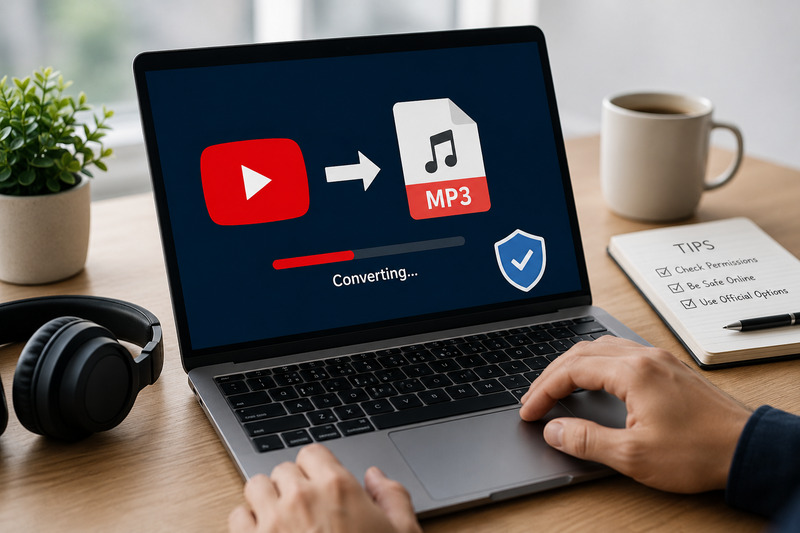

YouTube contains an enormous range of music, interviews, lectures, podcasts, tutorials, and other audio-focused content. When an internet connection is unreliable or mobile data is limited, converting a video into an MP3 file may appear to be a convenient way to listen offline.
YTMP3 is a name commonly associated with browser-based YouTube-to-MP3 conversion services. A typical converter accepts a video address, processes the video on a remote server, and provides an audio file for download.
That simplicity comes with important qualifications. Third-party converter websites are not official YouTube services, and their domains, operators, advertising partners, interfaces, and security practices may change. Downloading a video may also violate YouTube’s Terms of Service or the content owner’s copyright.
This guide explains how these converters generally work, how to identify common risks, and how to determine whether you have permission to convert a particular video.
Important: Only download or convert content that you own, that the copyright holder has authorized you to download, that is in the public domain, or that applicable law otherwise permits you to use. This article is general information, not legal advice.
What Is a YTMP3 Converter?
A YTMP3 converter is an online tool designed to extract the audio track from a supported online video and encode it as an MP3 file.
Because the conversion usually takes place on the website’s servers, users generally do not need conventional desktop editing software. The resulting MP3 can be played by most phones, computers, tablets, car stereos, and portable media players.
However, the term YTMP3 does not necessarily identify one permanent or independently verified service. Similar names and interfaces may appear on different domains. For that reason, no converter should automatically be considered trustworthy merely because it uses a familiar name or design.
Is YTMP3 Legal?
There is no universal yes-or-no answer. Two separate issues must be considered:
1. YouTube’s Terms of Service
YouTube’s Terms generally prohibit downloading, reproducing, altering, or otherwise using content unless:
- YouTube specifically provides the relevant feature
- YouTube and the applicable rights holder have granted permission; or
- The activity is permitted by applicable law.
A third-party converter does not become authorized simply because it is technically able to process a public YouTube link.
2. Copyright Law
Most videos, songs, performances, audiobooks, and podcasts are protected by copyright. Personal or noncommercial use does not automatically give someone permission to make a copy.
Rules and exceptions differ by country. In the United States, fair use can apply in limited circumstances involving purposes such as criticism, commentary, research, teaching, or news reporting. It is assessed case by case, and only a court can conclusively determine whether a particular use qualifies. Other countries may apply fair dealing or more narrowly defined exceptions.
Content That May Be Appropriate to Convert
Conversion may be permissible when:
- You created and own the video.
- The creator explicitly gave you permission.
- The creator provides a legitimate download link.
- The material is genuinely in the public domain.
- The applicable licence permits downloading and conversion.
- A relevant copyright exception clearly applies in your jurisdiction.
- YouTube itself provides an authorized download function.
Check the video description, creator’s website, licence information, and local law rather than assuming that publicly viewable content is free to download.
How to Use a YTMP3 Converter
Converter interfaces vary, but the basic process is usually similar.
Step 1: Confirm that you may download the content
Before copying the video address, determine whether you own the content or have permission to download and convert it.
Do not rely on disclaimers such as “no copyright infringement intended.” Giving credit to the creator or using a file only for personal purposes does not automatically create permission.
Step 2: Copy the video address
Open the authorized video on YouTube and copy its URL from the browser’s address bar.
In the YouTube mobile app, the address can normally be copied through the Paylaşmak menu.
Step 3: Examine the converter page carefully
Before interacting with a converter, check the domain spelling and look for warning signs such as:
- Numerous flashing download buttons
- Automatic redirects to unrelated websites
- Requests to install a browser extension
- Prompts to download a “codec,” “player,” “cleaner,” or “update”
- Fake virus or system-error warnings
- Requests for payment-card details
- Requests for a Google or YouTube password
- A demand to enable browser notifications before conversion
A simple media conversion should not require access to your Google account, remote-control software, payment information, or an unrelated executable program.
Step 4: Paste the permitted URL
Paste the copied address into the converter’s input field.
Avoid pasting links to private, confidential, age-restricted, paid, or otherwise access-controlled material. Never attempt to bypass authentication, digital restrictions, or access controls.
Step 5: Select MP3 as the output format
Choose MP3 when the service provides more than one output option.
Some converters display bitrate choices such as 128, 192, 256, or 320 kilobits per second. A higher bitrate can create a larger file, but it cannot restore detail that was absent from the source.
MP3 uses lossy compression, which permanently discards some audio information. Re-encoding already compressed streaming audio can introduce additional quality loss. A converter advertising “320 kbps” is therefore not necessarily producing audio equivalent to an original studio-quality 320 kbps file.
For speech, interviews, and lectures, a moderate bitrate is normally sufficient. Music may benefit from a higher setting when the source and converter genuinely support it, although the quality remains limited by the original stream.
Step 6: Start the conversion
Select the page’s genuine Convert or equivalent control.
Be cautious if a click opens another tab, starts an unexpected download, or displays a security warning. Close unrelated tabs rather than interacting with them.
Processing time may depend on the video’s duration, the converter’s capacity, and the speed of the connection.
Step 7: Inspect the downloaded file
Before opening the file, confirm that:
- Its extension is .mp3
- Its name broadly matches the expected content
- Its size is plausible for an audio file
- Your browser or security software has not issued a warning
A file presented as audio should not end in extensions such as .exe, .msi, .dmg, .pkg, .apk, .bat, or .scr. Delete unexpected executable files without opening them.
Step 8: Scan and organize the MP3
Keep the operating system, browser, and security software updated. Scan the downloaded file when appropriate, especially if the browser identifies it as unusual.
After verifying it, rename the file clearly and store it in the device’s music or downloads folder. Add title, artist, album, or episode information with a reputable media-library application when needed.
Is YTMP3 Safe?
A blanket safety guarantee would be misleading.
A converter can process files without installing a desktop application and still expose users to harmful advertising, deceptive buttons, redirects, browser-notification abuse, tracking, phishing, or malicious downloads.
Bu Federal Trade Commission advises consumers not to use unfamiliar websites to obtain free music, movies, shows, or games. It also warns against clicking advertisements that offer software downloads, because bogus ads and unfamiliar download pages can distribute malware.
Ways to Reduce the Risk
- Keep your browser and operating system updated.
- Use built-in browser protections and reputable security software.
- Do not sign in with a Google account.
- Do not enter payment or identity information.
- Decline browser-notification requests.
- Close unexpected redirects and pop-ups.
- Never install software merely to complete an online conversion.
- Inspect the filename and extension before opening it.
- Delete any download that triggers a credible security warning.
- Avoid lookalike domains reached through suspicious ads or messages.
No checklist can make an untrustworthy website completely safe. Leaving the page is the best response when its behavior appears deceptive.
Does a VPN Make a Converter Safe?
No. A virtual private network can encrypt traffic between a device and the VPN provider and may conceal the user’s IP address from the destination website. It does not verify that the converter is legitimate, remove malware from a downloaded file, block every phishing page, or make an unauthorized download legal.
Similarly, private or incognito browsing mainly limits what the browser stores locally. It does not make a malicious website harmless or make activity invisible to websites, network operators, employers, schools, or internet providers.
Advantages of Browser-Based Converters
When used with authorized content and a trustworthy service, a browser-based converter can offer practical benefits:
- No full audio-editing suite is required.
- MP3 files work with a wide range of devices.
- Audio uses less storage than an equivalent video file.
- Spoken material can be easier to review without a screen.
- Files can be organized in a local media library.
These conveniences should be weighed against the legal, privacy, security, and quality limitations.
Disadvantages and Limitations
Third-party YouTube converters can present several problems:
Uncertain Security
The website may depend on advertising networks, redirects, analytics providers, or download partners that are not obvious to the user.
Unclear Ownership
A familiar name or design does not prove that the current operator is connected to an earlier version of the service.
Copyright and Contractual Restrictions
The technical ability to convert a video does not establish a legal right to copy it.
Inconsistent Audio Quality
The result depends on the source stream, the converter’s encoding process, and the selected output settings. Re-encoding cannot improve the underlying recording.
Failed or Incomplete Conversions
Long, private, restricted, live, removed, or unsupported videos may not process correctly.
Limited Transparency
A converter may provide little information about retention periods, server locations, subprocessors, security controls, or whether submitted URLs and IP addresses are logged.
Safer Official Alternatives
Third-party conversion is not the only way to listen without a continuous connection.
YouTube Premium downloads
YouTube Premium allows eligible videos and playlists to be downloaded for offline viewing through supported YouTube applications. Downloads are accessed from the account’s Downloads section rather than provided as unrestricted MP3 files. Availability can depend on the location, device, membership, and content.
YouTube Music Premium
YouTube Music Premium supports offline downloads of eligible music and podcasts within the YouTube Music application.
Creator-Provided Downloads
Many musicians, podcasters, educators, and software projects provide authorized files through:
- Their official websites
- Podcast RSS feeds
- Online stores
- Membership platforms
- Public repositories
- Course portals
- Links in the video description
A download supplied by the creator is normally more reliable and may offer better audio quality, accurate metadata, supporting material, and clearer usage rights.
Your Own Uploaded Videos
When the video belongs to you, use the download or export features available through your original files, editing software, storage account, or creator dashboard. Working from the original recording will usually produce better audio than extracting and re-encoding a streamed copy.
Frequently Asked Questions
A basic converter should not need access to your Google or YouTube account. Do not provide sign-in credentials to a third-party converter. Whether a specific website requires registration can change, so examine its current interface and privacy policy before using it.
It can create an MP3 at a selected output bitrate, but the label alone does not establish genuine source quality. Converting a compressed YouTube stream into a high-bitrate MP3 does not restore audio information already removed during earlier encoding.
Some services may advertise playlist conversion, but availability varies. Bulk conversion also increases copyright, security, storage, and organizational concerns. Confirm that every item is authorized before processing it.
Not automatically. Personal use may be relevant under some laws, but it does not universally override copyright or YouTube’s Terms of Service. The answer depends on the content, permission, jurisdiction, purpose, and method of access.
No. A genuine MP3 is not an executable application, but filenames and extensions can be disguised. A download page may also deliver a different file type or bundle it with unwanted software. Always inspect the final extension and heed browser or security warnings.
The converter may use advertising or redirect networks. Close the new tab when it is unrelated to the requested conversion, and do not interact with fake download buttons, prize pages, surveys, notification requests, or system warnings.
Alt Çizgi
A YTMP3-style converter can provide a quick way to create an MP3 from authorized video content, but convenience should not be mistaken for safety, legality, or guaranteed quality.
Before converting anything:
- Confirm that you have the right to download it.
- Consider YouTube’s official offline features first.
- Avoid sites that request credentials, installations, notifications, or payment details.
- Treat advertisements, redirects, and unexpected files cautiously.
- Remember that converting compressed streaming audio cannot improve the original sound.
For most users, YouTube Premium, YouTube Music Premium, or an authorized creator-provided download offers a more predictable way to access content offline. A third-party converter should be considered only when the content is legitimately available for conversion, and the user understands the remaining security and privacy risks.